How to Fill Out a PDF Form
Online for Free
Fillable or not, on desktop or phone — here's how to complete any PDF form without printing it, without an account, and without your form ever leaving your device.
You've got a PDF form to complete — a job application, a tax form, a medical intake sheet, a rental application — and printing it, filling it by hand, and scanning it back in isn't an option. The good news: you can fill out almost any PDF form directly on your computer or phone, for free, without installing anything or creating an account. This guide covers both types of PDF forms you'll run into, because they need different approaches — and most guides only cover one of them.
Quick Answer
Open the Raha Tools PDF Editor, click into any field (or click directly on the page if there are no real fields), type your answers, sign it, and export. No sign-up, no watermark, and the file never leaves your device.
Open the PDF Editor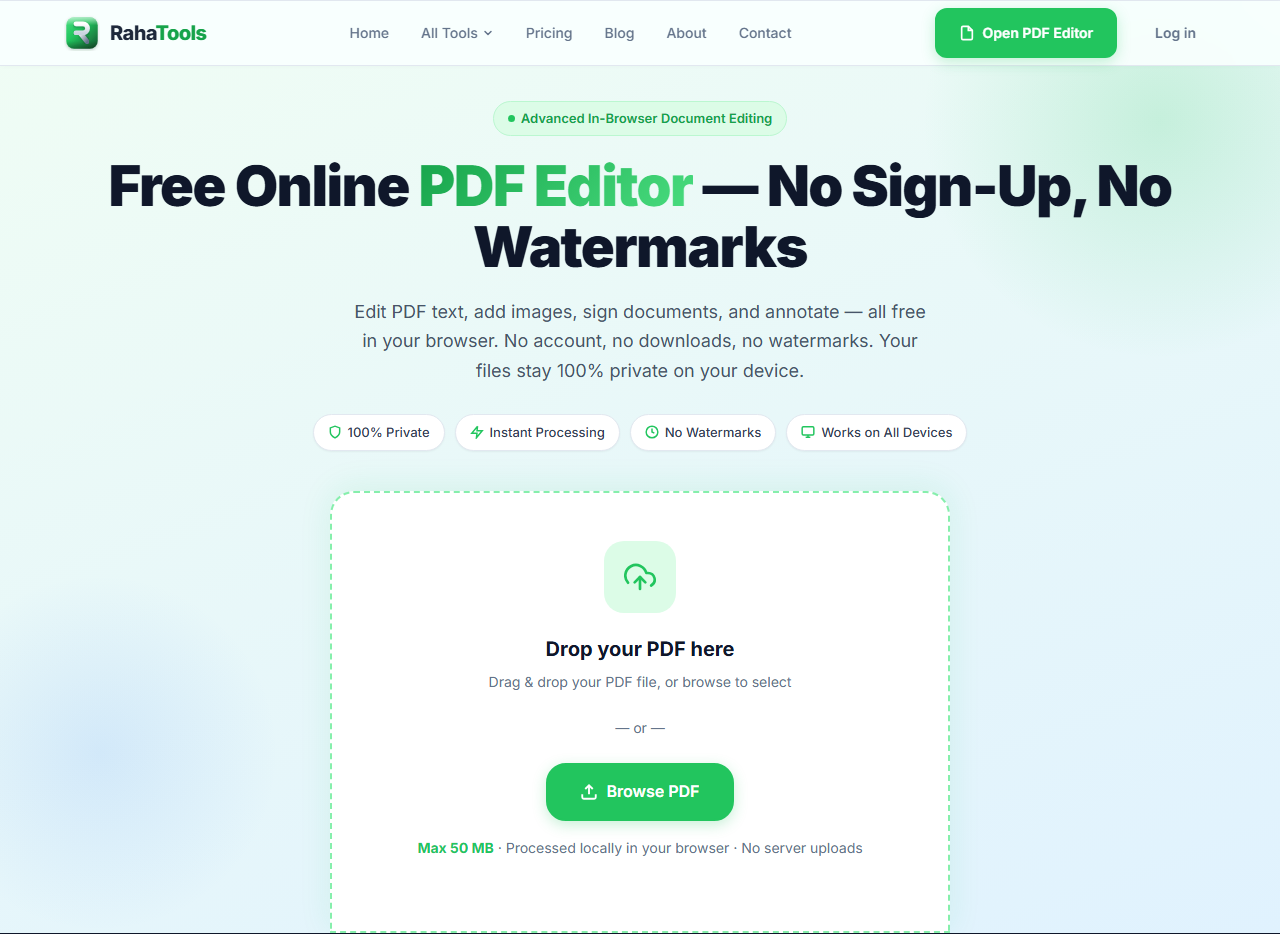
What Kind of PDF Form Do You Have?
Before you start, it helps to know which of two categories your form falls into, because the fix is different for each:
- Fillable (interactive) forms — these have real form fields built in: text boxes, checkboxes, dropdowns. Government forms and HR documents are often built this way.
- Non-fillable (flat) forms — these are just a scanned image or a flattened PDF with no clickable fields at all. This is far more common than people expect, especially with scanned or older documents.
Quick way to tell which one you have
- Hover your cursor over a blank line or box — a fillable field usually highlights or the cursor changes.
- Try pressing Tab after clicking near the top of the form — on a fillable form, this jumps between fields.
- If nothing highlights and Tab does nothing, you have a flat form — skip to the next section.
How Do You Fill Out a Fillable PDF Form?
If your form has real interactive fields:
- Open the PDF in the Raha Tools PDF Editor — drag and drop the file, or tap to browse.
- Click into any field. Text boxes let you type directly; checkboxes and dropdowns respond to a click.
- Tab or click through the remaining fields until the form is complete.
- Click Export to download the finished PDF — ready to email or print.
Because the whole process happens locally in your browser, there's no upload step and no waiting — you can start typing within seconds of opening the file.
How Do You Fill Out a PDF Form That Has No Fillable Fields?
This is the case most guides skip, and it's genuinely common — a form that's really just an image or a flattened layout with nowhere to click.
Here, you're not "filling in fields" — you're adding new text directly onto the page, positioned over the blank lines or boxes:
- Open the form in the PDF Editor.
- Use the text tool to click anywhere on the page — including blank lines that aren't real fields — and type your answer.
- Position each text block precisely over the corresponding line using the same click-and-drag placement.
- Export when every field is filled.
The result looks identical to a properly filled interactive form, even though there were no fields to begin with. This is the more universally useful skill, since it works on any PDF, fillable or not.
Worked example: a rental application
Say you've been emailed a scanned rental application — a flat, non-fillable PDF with lines for your name, income, and references. Open it in the editor, click on the blank line after "Applicant Name," type your name, and it sits right on the line. Repeat for each field: income, employer, references, move-in date. Because you're placing text rather than filling a field, you can also adjust font size slightly if a line is short, so longer answers still fit cleanly. Once every line is filled and you've signed at the bottom, export — the landlord receives a document that looks exactly like a properly completed form.
How Do You Sign a PDF Form After Filling It Out?
Most forms need a signature to be valid. Once your form is filled in:
- Use the signature tool to draw, type, or upload a signature image.
- Place it in the signature field or line, resizing as needed.
- Export the final, signed document.
Because you're still working in the same editor session, you don't need to export the filled form and re-upload it somewhere else to sign it — filling and signing happen in one pass.
Is It Safe to Fill Out Sensitive Forms (Tax, Medical, Legal) Online?
This is worth being precise about, because "online PDF tools" as a category has a real trust problem: many of them upload your file to a server before you can even see it, which matters if you're filling in a Social Security number, medical history, or financial details.
Raha Tools' PDF Editor processes your file entirely in your browser — the document never leaves your device, at any point in the process. That's a meaningfully different privacy posture from tools that route your file through their servers "securely," because there's no upload step for that data to be exposed at in the first place. If a tool requires you to sign in or shows an "uploading…" progress bar, your form has left your device — worth knowing before you type in anything sensitive.
Can You Fill Out a PDF Form on Your Phone?
Yes — and this matters more than it might seem, since a lot of form-filling happens under time pressure on whatever device is in hand. The editor is fully touch-optimized: open the form in Safari (iPhone) or Chrome (Android), tap into any field or blank line, and your device's normal keyboard comes up. No app to install, and the same local-processing privacy applies on mobile as on desktop.
| Form type | How you fill it | Signature needed? |
|---|---|---|
| Fillable (interactive) | Click into fields, type directly | Use the signature tool on the signature field |
| Non-fillable (flat/scanned) | Place text directly on the page over blank lines | Same signature tool, placed manually |
Ready to fill out your form?
Fillable or not, you can complete it, sign it, and export it — free, no sign-up.
Open the PDF EditorFrequently Asked Questions
Do I need Adobe Acrobat to fill out a PDF form?
No. Acrobat is one option, but not a required one — any browser-based editor that supports clicking into form fields or placing text directly on the page will work, without the cost or install.
Is it free to fill out a PDF form online?
Yes, with Raha Tools' PDF Editor — no sign-up, no watermark on the exported file, and no cost for everyday use.
What if my PDF form isn't fillable — there are no clickable boxes?
Use the text tool to place your answers directly on the page over the blank lines, as covered above. This works on any PDF regardless of whether it has real form fields.
Can I save my progress and finish the form later?
Export what you've completed so far as a PDF, then reopen that exported file later to continue — your filled-in text is saved into the document itself, not lost between sessions.
Is it safe to fill out tax or medical forms online?
With a tool that processes files locally in your browser — like Raha Tools — yes, since the form never leaves your device. Be more cautious with tools that require an account or show an upload step, since that means your data is being sent to a server.
Can I fill out a PDF form on my phone without an app?
Yes. Open the form in your mobile browser and use the same click-to-type approach — no app store download required.
Ready to Fill Out Your Form?
Fillable or not, complete it and sign it in one pass — free, no sign-up.
Open the PDF Editor