
Remove a Password From a PDF You're Authorized to Open
Built for the everyday case: a file that's simply getting in the way of searching, merging, or sharing it internally. Most restrictions clear automatically; a real password is only ever typed if the file genuinely needs one.
Owner Password vs. Open Password: Why Some PDFs Unlock Instantly
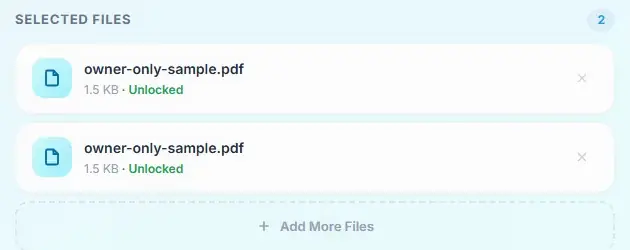
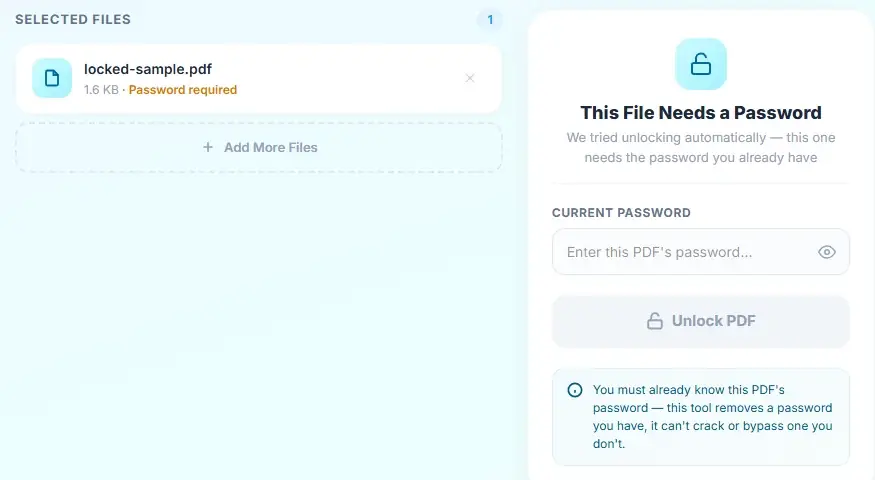
PDFs can carry two different kinds of password. An open (user) password blocks the document from being viewed at all until it's entered. An owner (permissions) password only restricts actions like printing, copying, or editing, the file opens freely either way. Raha Tools checks for this automatically: it quietly tries a blank password first, and if the PDF only ever had an owner password, it unlocks immediately with nothing to type. You're only prompted for a password when the file has a real open password, and that's true for every unlock tool that exists, not just this one: no PDF's real open password can be removed without it, since the file's content is genuinely encrypted with a key derived from that password.
Is It Legal to Remove a Password From a PDF?
Yes, as long as you're authorized to open the file, for example, it's your own document, or you have the owner's permission. This tool requires the real password before it will decrypt anything, so it isn't capable of bypassing protection on a file you don't have the right to access in the first place.
Frequently Asked Questions
Do I need to type a password?
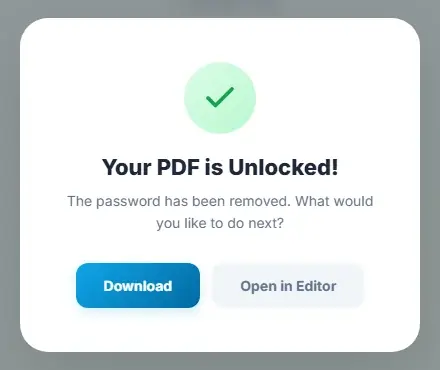
Not always. Many "protected" PDFs only restrict printing or editing and don't actually require a password to open, those unlock automatically the moment you upload them. You'll only be asked to type a password if the PDF genuinely requires one to open.
Can this remove a password I don't know?
No. This tool only removes a password you already know and can enter, it decrypts a file you're authorized to open. It cannot crack, guess, or bypass a password you don't have.
I forgot my PDF password. Can this help?
No, and be wary of any free tool that claims it can. This is a decryption tool, not a password-recovery or cracking tool. If you've genuinely forgotten the password, your options are to check where it was originally shared with you, ask whoever created the file, or use dedicated recovery software built for that specific purpose.
What's the difference between a PDF's owner password and its open password?
An open (user) password blocks the file from being viewed at all. An owner password just restricts actions like printing, copying, or editing, the file still opens freely. This is why so many "password protected" PDFs unlock instantly here with no typing: they only ever had an owner password, not an open one.
Is the unlocking really done in my browser?
Yes. Decryption runs locally using your own device's processor. Your file and its password are never sent to our servers.
Is my password stored anywhere?
No. We never store or see your password. The decryption happens locally, and once you close the tab, all data is cleared from your browser's temporary memory.
Can I remove a password from a PDF on my iPhone or Android?
Yes. The tool runs entirely in your mobile browser, Safari on iOS or Chrome on Android, with no app to install. Upload the file the same way you would on a computer.
Can I unlock multiple PDFs at once?
Yes. Select every file that shares the same password, type it once, and all of them are unlocked together and downloaded as a single ZIP.
Is it legal to remove a password from a PDF?
Yes, as long as you're authorized to open the file, for example, it's your own document, or you have the owner's permission. Removing password protection from a file you don't have the right to access is a different matter, and this tool won't help with that anyway since it requires the real password.
Is this tool free for business use?
Yes. Raha Tools is free to use for both personal and commercial use, with no hidden fees.