
Conversion Settings
Processing PDF...
Images Ready!
Your images have been generated.
Extract pages from PDF as JPG, PNG with transparent background, or WebP. Choose up to 600 DPI for print-quality files.
Your images have been generated.
JPG, PNG, and modern WebP
Web scale to 600 DPI print
No servers, no uploads
Packaged instantly for you
From format selection to instant local download — here's exactly how the Raha PDF to Image converter works, step by step.
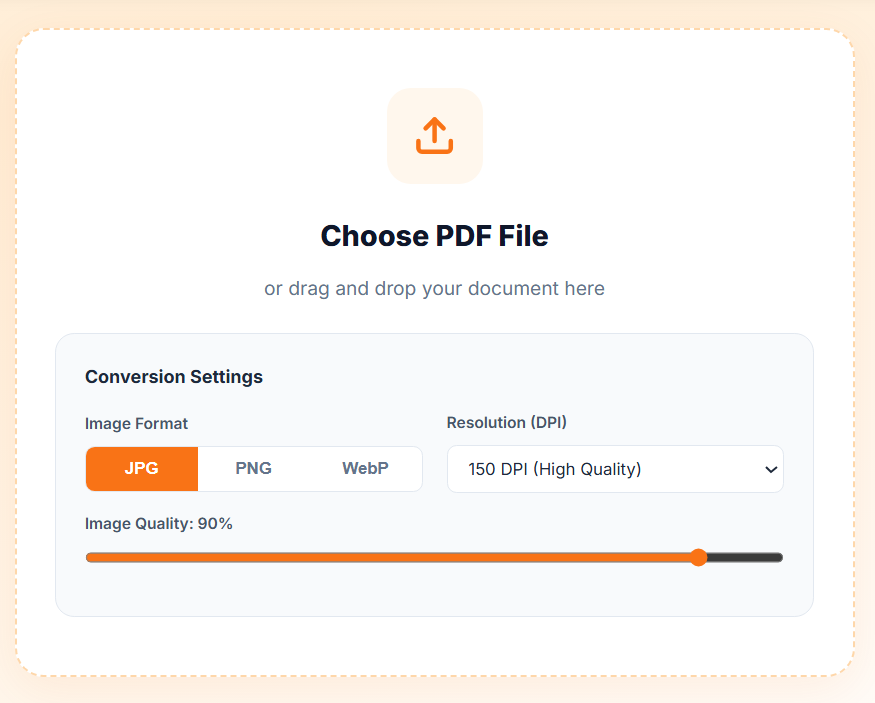

Drop your PDF into the upload area. Set your desired format (JPG/PNG), DPI, and quality before processing.
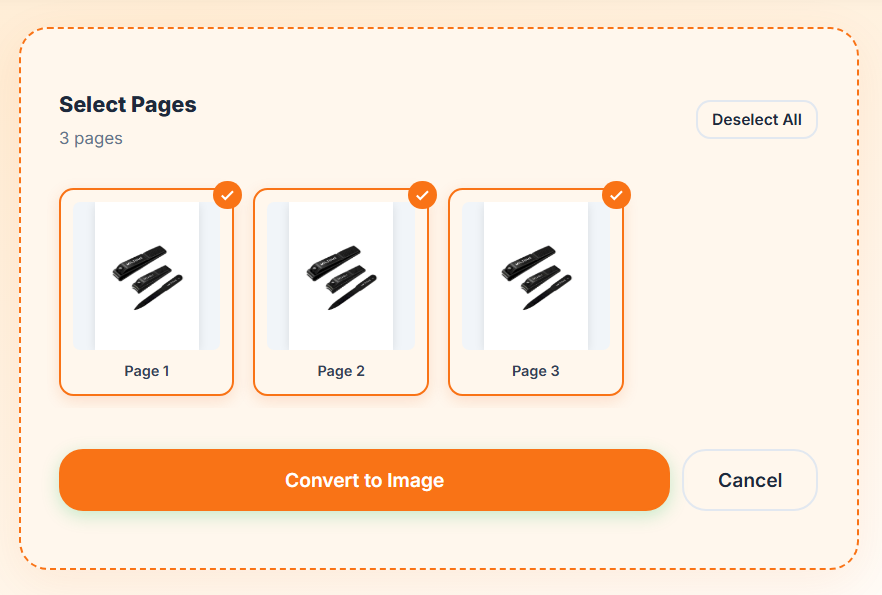
Our tool generates visual thumbnails instantly. Select only the pages you want to extract as images.
Convert and download. Multiple pages are automatically zipped into a single file for convenience.
Unlike standard converters that flatten your PDF against a white background, we allow you to preserve the transparency in your PDF when exporting to PNG.
Generate next-gen WebP images that provide superior lossless and lossy compression, ideal for uploading to modern websites.
Don't want all 50 pages? Our interactive grid renders thumbnails of every page so you can select exactly which ones to export.
Need to extract a specific chart, graphic, or page from a PDF document to use in a presentation or on a website? Taking a screenshot often results in blurry, low-quality images. The Raha Tools PDF to Image Converter solves this problem by rendering the PDF vector instructions directly into high-fidelity raster images (JPG, PNG, or WebP) exactly as intended by the original author.
Unlike basic online converters that give you a one-size-fits-all output, our tool puts you in control of the DPI (Dots Per Inch). Select 72 DPI for lightweight images perfect for email and web uploads. If you're preparing files for professional printing or archival, our engine can extract pages at up to 600 DPI, ensuring crisp text and unpixelated graphics.
Whether you are extracting images from legal contracts, confidential reports, or personal documents, uploading them to remote servers can be a massive security risk. Raha Tools operates entirely within your web browser. The PDF is analyzed and converted to images locally on your device's memory. No files are uploaded to the cloud, meaning zero wait times and 100% privacy.
Most converters flatten your PDF onto a solid white background and force a JPG export. Our advanced engine allows you to export to PNG with transparent backgrounds—essential for logos or design elements. Alternatively, you can choose WebP format, which provides superior lossless and lossy compression compared to traditional formats, helping your web pages load significantly faster.
Everything you need to know about converting PDFs to images safely.
JPG is best for photos and large documents where file size matters. PNG is ideal for graphics with text or shapes, and supports transparent backgrounds. WebP offers the best of both worlds with smaller file sizes, but is primarily meant for web developers.
Use 72 DPI for standard screen viewing and web uploads. Use 150 DPI for high-quality digital documents. Use 300 DPI if you intend to print the images. 600 DPI is reserved for archival purposes or extremely large prints, but will generate large file sizes.
No. Raha Tools processes all PDF files locally using your browser's resources. The files never leave your computer, ensuring complete privacy and immediate processing speeds.
Free to use, and runs 100% in your browser.
More ways to work with your files, free, right in your browser.