Best Free PDF Editor Online in 2026
An objective, technical evaluation framework to help you choose the right free online PDF editor. Understand true text editing, privacy architectures, free-tier limits, and how major tools compare.
Finding a truly capable free online PDF editor in 2026 requires looking past marketing claims. While dozens of websites advertise "free PDF editing" on search result pages, the actual user experience varies dramatically once a document is uploaded. Some services only allow adding notes or sticky boxes over existing content; others enforce mandatory account registration, hold downloads behind paywalls, or apply intrusive watermarks across exported pages.
This guide serves as an objective evaluation framework. We examine what technically happens when an online editor alters a PDF, detail the critical criteria you should verify before uploading sensitive files, and compare leading options—including our own Raha PDF Editor alongside recognized alternatives like Adobe Acrobat Online, iLovePDF, Smallpdf, Sejda, Canva, and PDF24.
Summary Recommendation
If you need to edit PDF text directly in your browser without creating an account, without watermarks, and without uploading your file to a cloud server, Raha PDF Editor is designed specifically for fast, private local execution. If your primary need is team collaboration within Google Workspace, Smallpdf or Lumin are worth evaluating. For complex offline legal Bates-numbering, Sejda's desktop app or PDF24 are strong candidates.
What Makes a Free PDF Editor Truly Useful? (Evaluation Framework)
Before entrusting a tax document, employment contract, or academic thesis to an online tool, evaluate it against these six technical and practical criteria:
1. True Text Editing vs. Overlays
Verify whether the tool edits existing typography directly, or merely places whiteout blocks with text overlays that break line wrapping.
2. Local Browser vs. Cloud Upload
Determine whether file processing executes client-side via WebAssembly/HTML5 or transmits unencrypted copies to external cloud infrastructure.
3. Account & Credential Friction
Check if completing a simple 2-minute edit demands registering an email address, verifying a password, or entering payment details.
4. Watermark & Export Policies
Ensure the free tier exports clean documents suitable for professional submission without forced branding stamps across text.
5. Free-Tier Caps & Task Limits
Understand the exact ceiling: how many tasks, pages, or megabytes are permitted per day before access is restricted.
6. Font Matching & Text Flow
Inspect how the editor handles embedded font subsets and whether character spacing preserves layout alignment.
Factual Feature Matrix: Top Free PDF Editors (2026)
The table below summarizes verified features across prominent online tools as of 2026. Data reflects publicly available free-tier capabilities.
| PDF Editor | Direct Text Editing | No Account Needed | Runs in Browser (No Upload) | Watermark-Free Export | Free Plan Limits |
|---|---|---|---|---|---|
| Raha PDF Editor | Yes (Full Inline) | Yes | Yes (Client-Side) | Always Clean | 3 tasks/day or hour, 50 MB, 200 pgs |
| Adobe Acrobat Online | Paid Subscription Only | Account Required | Cloud Upload | Yes (Commenting) | View & comment only; text edit locked |
| iLovePDF | Limited (Text Overlays) | Yes (Basic Tasks) | Cloud Upload | Clean | Task allowance, 15 MB/file, ad-supported |
| Smallpdf | Limited (Annotation) | Account Required | Cloud Upload | Watermark if cap reached | 2 tasks per 24 hours |
| Sejda | Yes (Inline Text) | Yes | Cloud Upload (Web) | Clean within limits | 3 tasks/hour, 50 MB, 200 pages |
| Canva | Yes (Converted Layout) | Account Required | Cloud Upload | Clean (Free Assets) | Full import; no OCR or PDF forms |
| PDF24 | Text Additions & Tools | Yes | Cloud Upload (Web) | Clean | Generous free web & desktop tools |
Detailed Reviews & Capability Breakdowns
1. Raha PDF Editor (Our Solution)
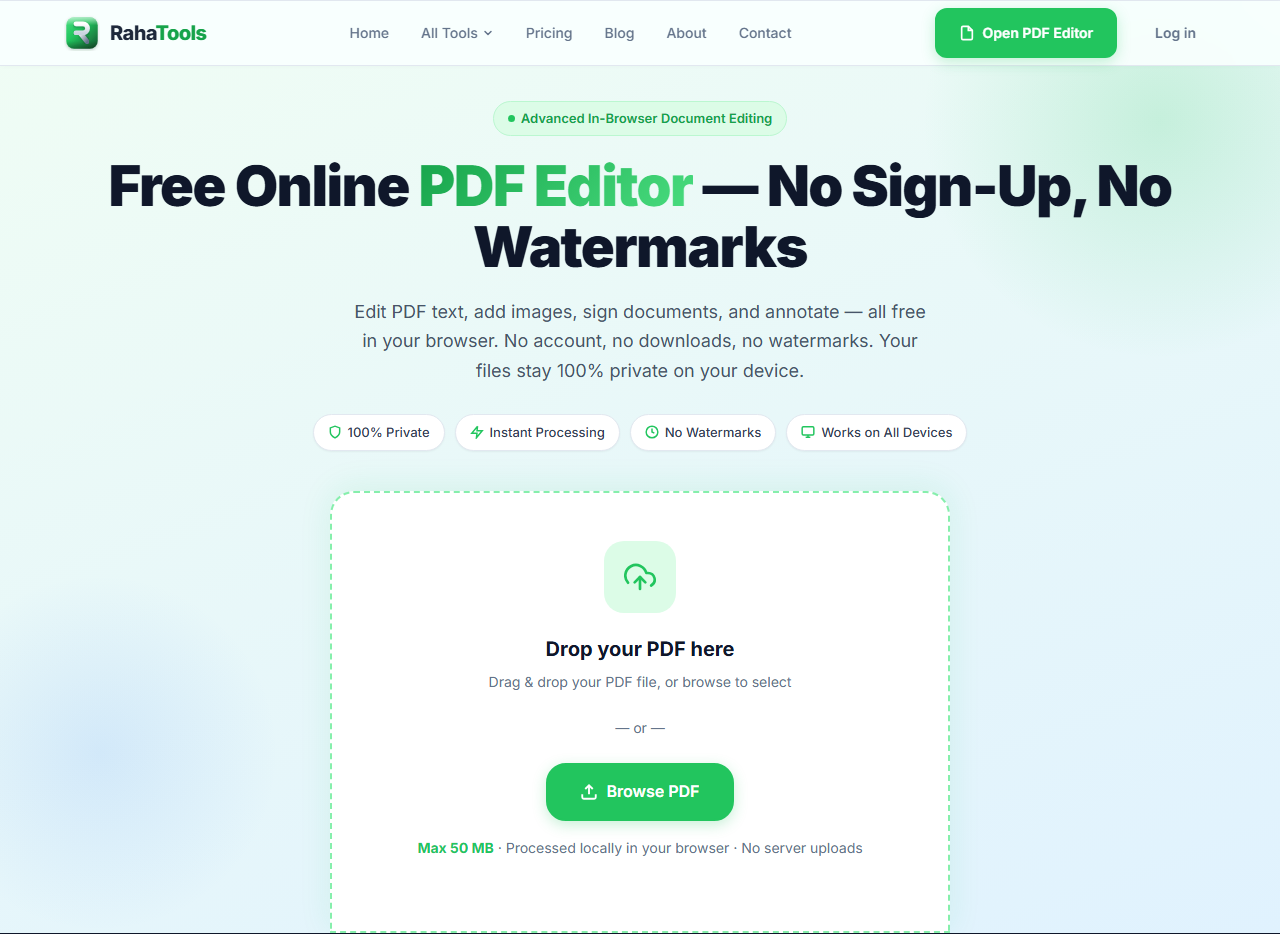
Client-Side ArchitectureThe Raha PDF Editor was engineered specifically to solve the privacy and friction issues common to legacy document editors. Built with client-side WebAssembly and PDF-lib rendering, the editor executes directly within your browser tab. Your document is processed locally using your device's processor—it is never transmitted across a network or stored on external servers.
You can click directly into existing paragraphs to correct typos, insert replacement text, adjust font styling, insert digital signatures, highlight key clauses, and export finished documents in seconds. Because it eliminates server round-trips, performance remains fast even on larger multi-page reports.
Verified Strengths
- True in-browser text modification—click and edit existing sentences
- 100% private local execution; files never leave your computer or phone
- Zero signup required—no email, passwords, or credit card collection
- Watermark-free exports across both free and Pro tiers
- Includes integrated signing, form filling, OCR, and page organization
Known Trade-offs
- Free tier limited to 3 tasks per day/hour (Pro removes caps for $5/mo)
- Does not offer automatic cloud storage sync (Google Drive / Dropbox)
- Requires a modern browser with WebAssembly support
2. Adobe Acrobat Online
Ecosystem LeaderAdobe developed the Portable Document Format (PDF) specification and remains the gold standard for rendering accuracy. Adobe Acrobat Online (accessible via web browsers) provides reliable viewing, annotation, form completion, and conversion tools backed by deep integration with the Adobe Creative Cloud ecosystem.
However, as a standalone free text editor, it has significant restrictions. Modifying existing text lines requires an active paid Adobe Acrobat Pro subscription (starting around $19.99/month). On the free tier, editing text is disabled, and an Adobe account is mandatory for nearly all actions.
Verified Strengths
- 100% rendering fidelity matching the official PDF specification
- Robust e-signature workflows with Adobe Sign
- Direct synchronization for Creative Cloud subscribers
Known Trade-offs
- Direct text editing is locked behind a paid subscription
- Requires mandatory account creation and login
- Files are uploaded and processed on Adobe cloud servers
3. iLovePDF
Feature-Rich SuiteiLovePDF is a well-established utility platform offering over 25 distinct document tools, including merging, splitting, compressing, repairing, and converting files. Its web interface is straightforward, and basic utilities can be accessed without creating an account.
Its primary text editing limitation is that the editor primarily functions as an annotation overlay: you can add new text boxes, shapes, and stamps over existing content, but directly clicking into and editing original typography is limited. Files are uploaded to remote servers, and free file size is capped around 15 MB with ads displayed in the interface.
Verified Strengths
- Wide variety of quick conversion and page organization utilities
- Basic tasks can be run without mandatory login
- Well-maintained companion apps for iOS and Android
Known Trade-offs
- Text editing is primarily annotation overlay, not inline font editing
- Documents are uploaded to cloud servers for processing
- Free usage is ad-supported with strict file size ceilings
4. Smallpdf
Workspace CollaborationSmallpdf features one of the cleanest user interfaces in the category. It is optimized for collaboration across teams, offering tight integrations with Google Drive and Dropbox, along with structured e-signature workflows and OCR processing.
The primary hurdle for casual searchers is the strict free tier. Free visitors are limited to just 2 tasks per 24-hour cycle. Once you perform two actions, further work is blocked unless you register for a paid subscription (roughly $9–12/month). Almost all workflows require an account, and files are processed via Smallpdf's cloud infrastructure.
Verified Strengths
- Polished interface with high usability
- Native Google Drive and Dropbox storage integrations
- Effective OCR for scanned files on paid tiers
Known Trade-offs
- Extremely restrictive free limit (2 tasks every 24 hours)
- Account creation required for standard workflows
- Files upload to cloud infrastructure
5. Sejda
Inline SpecialistSejda is one of the few web-based editors that provides true inline text modification similar to Raha Tools. You can click directly into a sentence, delete characters, and insert new wording. It also offers specialized features such as Bates numbering, form building, and optical character recognition.
The free web version provides an allowance of approximately 3 tasks per hour with a 50 MB / 200-page limit. However, the web edition uploads files to Sejda's cloud servers. Sejda also produces a standalone desktop application that keeps files local, which serves as an alternative for users seeking offline processing.
Verified Strengths
- True inline text modification directly in the browser
- Specialized legal and financial tools (Bates numbering, redaction)
- Desktop app available for offline local processing
Known Trade-offs
- Web edition uploads documents to cloud infrastructure
- Hourly task limit can interrupt extended document revision sessions
- Desktop application requires local software installation
6. Canva PDF Editor
Design-CentricCanva approaches PDF editing from a graphic design perspective. When you upload a PDF to Canva, its engine deconstructs the document into graphical design elements (shapes, images, and text boxes) inside the familiar Canva canvas.
This approach works well for marketing brochures, resumes, flyers, and visual documents where you want to swap photos or change header styling. However, it is not built for formal document processing: it cannot parse interactive PDF forms, lacks legal e-signature workflows, has no OCR for scanned files, and requires a registered Canva account.
Verified Strengths
- Excellent for visual updates, graphics, layout rearranging, and branding
- No watermarks when using standard free canvas elements
- Handles large multi-page visual brochures comfortably
Known Trade-offs
- Deconstructed layout can alter original formatting and character spacing
- No PDF form field filling or legal signature authentication
- No OCR for scanned paper documents; account mandatory
7. PDF24 Creator & Tools
Utility WorkhorsePDF24 by Geek Software is well known for offering a comprehensive suite of free utilities with virtually no artificial task or size limits. It provides web tools alongside an extensive offline desktop application for Windows.
While PDF24 offers immense utility for merging, splitting, compressing, and protecting files without paywalls, its text editing features are relatively basic compared to dedicated editors. It allows inserting new text and images, but complex inline paragraph re-wrapping is limited. The user interface is utilitarian and functional rather than streamlined.
Verified Strengths
- Generous free utilities with minimal task or file limits
- Reliable offline desktop version available for Windows users
- No account creation required for online tools
Known Trade-offs
- Direct inline text editing is limited compared to dedicated text editors
- Web processing transmits files to external servers
- User interface can feel dated and utilitarian
Technical Realities: Why PDF Text Editing Can Be Difficult
Many users wonder why editing a PDF is not as simple as editing a Microsoft Word document or Google Doc. Understanding how the PDF format was created explains these technical challenges:
The PDF File Architecture
The PDF specification was designed in the early 1990s as a digital "electronic paper" format based on PostScript. Its primary goal was visual fidelity: a document printed in Tokyo on a laser printer had to look 100% identical to the same document viewed in London on a CRT monitor.
Absolute Coordinates vs. Flow
Word processors store paragraphs as fluid text streams that reflow when words are inserted. PDFs store characters with explicit X and Y coordinates on a static page. Inserting words requires mathematically calculating and repositioning every following glyph.
Embedded Font Subsets
To reduce file weight, PDF creators typically embed only the characters used in the original document. If you type a letter "Z" that was never used in the original contract, the PDF lacks the font glyph, necessitating fallback font synthesis.
Scanned Pixel Grids
When paper is scanned, the PDF does not contain text—it contains a flat image of a page. Modifying words requires applying OCR to convert pixels into text before editing can begin.
In-Browser WebAssembly
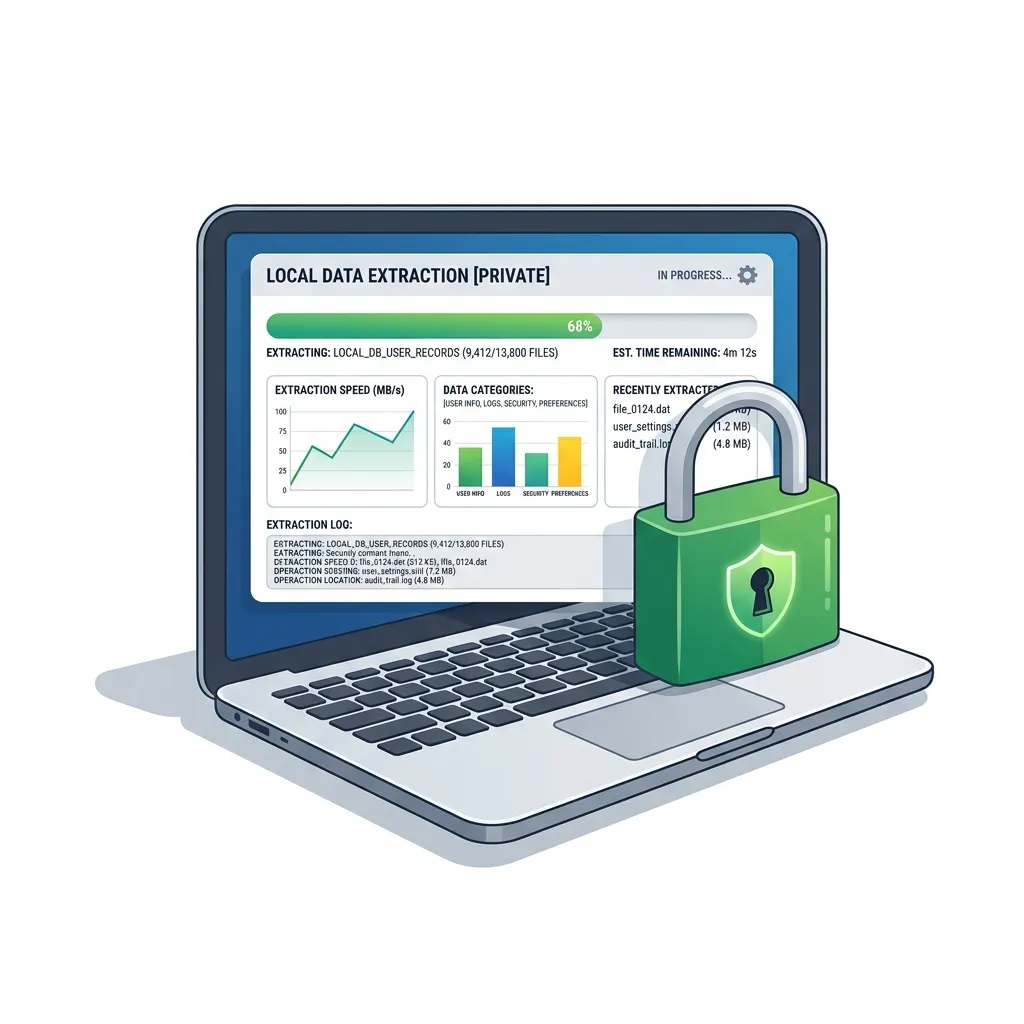
Historically, heavy PDF parsing required desktop software. Modern browser engines like Raha PDF Editor use WebAssembly to compile C++ and Rust PDF libraries directly into browser threads, enabling client-side execution.
Which Free PDF Editor Should You Choose?
Use this decision guide to match your immediate document task to the tool designed to solve it:
- You need to correct typos or update text quickly & privately: Use Raha PDF Editor. It modifies existing text directly in your browser without creating an account or transmitting data across networks.
- You need to sign an agreement or lease form: Launch the browser-based Sign PDF tool to draw, type, or upload an e-signature. Read our guide on how to sign a PDF online.
- You need to complete an application or interactive form: Use our dedicated PDF Form Filler to type into fields without printing paper.
- You need to edit text on a scanned physical document: Review our guide on editing scanned PDFs online or extract text using PDF OCR.
- You need to combine or reorganize multi-page reports: Use Merge PDF or Split PDF, or review our guide to delete pages from PDF.
- You need to protect draft materials: Add ownership stamps using our tool to watermark PDF or check our tutorial on watermarking documents.
- You need to convert formats: Easily convert via Word to PDF, PDF to Word, PDF to Excel, PDF to PowerPoint, or PDF to Image.
- You want a comprehensive hub of no-login document utilities: Explore our directory of the best free PDF tools with no sign-up.
Real-World Use Cases & Practical Workflows
Different workflows require different editing capabilities. Here is how various professions and individuals optimize their document tasks:
Students & Academics
Updating title pages on research papers, fixing citation typos, and merging separate chapter assignments into a consolidated thesis before portal submission.
Job Seekers
Tailoring resume bullet points, correcting phone numbers, and updating employment dates directly in the PDF without disrupting careful layout alignment.
Freelancers & Consultants
Applying legal electronic signatures to client proposals, inserting project deliverable dates, and watermarking draft mockups with review notices.
Office Administrators
Consolidating quarterly reports, correcting meeting agendas, rotating orientation on misaligned scans, and removing duplicate blank sheets.
Small Business Owners
Filling out supplier credit applications, updating vendor payment terms on invoices, and password-protecting tax documents for accountant review.
Legal & Real Estate
Redacting confidential identity numbers, separating lease addendums, and unlocking authorized files using PDF unlocking tools.
Frequently Asked Questions
What is the best free PDF editor online in 2026?
The right editor depends on your workflow. If your priority is fast, private in-browser text modification without accounts or server uploads, Raha PDF Editor is engineered for local execution. Users needing cloud team collaboration often use Smallpdf or Adobe, while offline legal workflows frequently rely on Sejda or PDF24.
Can I edit a PDF online for free without downloading software?
Yes. Browser-based editors leverage HTML5 canvas and WebAssembly technologies to modify text, insert signatures, and manage pages inside Chrome, Safari, Firefox, and Edge with no software installation required.
Can I edit PDF text without creating an account?
Yes. The Raha PDF Editor allows users to click into text, make edits, and export finished files with zero account registration, login verification, or email collection.
Why do fonts sometimes look different when editing a PDF?
PDF files often embed custom font subsets that contain only the specific characters used in the original document. When you type new characters, the editor must synthesize matching typography or substitute a close system font.
What is the difference between editing text and adding annotations?
True text editing modifies the underlying character stream in the PDF data structure. Annotation overlays simply place white shapes over original content with text on top, which does not reflow sentences naturally.
Can I edit a scanned PDF with an online editor?
Scanned PDFs are flat images. To modify words on a scanned sheet, the file must first pass through optical character recognition. Check our guide on how to edit scanned PDFs online for complete steps.
Is Raha PDF Editor free?
Yes. Raha Tools provides a generous free tier of 3 tasks per day/hour, supporting documents up to 50 MB and 200 pages with clean, watermark-free exports. An optional Pro tier is available for high-volume users.
Can I edit PDFs on a smartphone or tablet?
Yes. All tools on RahaTools are fully responsive and function in mobile Safari and Chrome on iOS and Android without downloading native app binaries.
Ready to Edit Your PDF?
Open your document directly in your browser. Correct typos, add signatures, annotate clauses, and export clean PDFs in seconds—no registration required.
Launch Free PDF Editor →