Document Review & Annotation Online
Complete Guide, Features & FAQ
Everything about reviewing PDF, Word, and Excel documents online — every feature explained, a full step-by-step walkthrough, real use cases, and answers to the questions people actually ask before they try it.
Reviewing a document the old way is a mess. Someone emails you a PDF, you print it (or don't, and squint at it on a laptop), scribble notes in the margins or drop comments into a Word doc, email it back, and hope the other person can actually find and act on what you flagged. There's no consistent way to say "this is a critical error" versus "this is a nice-to-have," no record of who approved what, and if the document has anything sensitive in it, a copy of it is now sitting in someone's cloud inbox indefinitely.
Multiply that by a real workflow — three reviewers, two rounds of revisions, a final sign-off someone has to chase down over Slack — and "review the document" quietly becomes the slowest part of getting anything approved. Version control turns into a mess of "final_v2_ACTUALFINAL.pdf" file names. Comments get buried in email threads nobody rereads. And if two people are marking up the same file separately, reconciling their feedback into one clean set of action items is its own chore.
An online document review tool fixes this by putting the whole process — highlighting, commenting, categorizing severity, scoring, and formally signing off — into one browser tab, on the document itself. This guide covers exactly how that works using Raha Tools' Document Review & Authorization Suite: every feature it actually has, how to use each one, who it's built for, a full step-by-step walkthrough, best practices, common mistakes to avoid, and the questions people search for most before trying it.
Quick answer
The Raha Tools Document Review tool lets you upload a PDF, Word, or Excel file and mark it up with color-coded, categorized annotations, optional scoring, digital stamps, and a multi-role sign-off workflow — entirely in your browser, with no upload to any server and no account required. The free plan covers every feature with a 3-tasks-per-day allowance.
What Is Online Document Review?
"Document review" covers a lot of different jobs — a lawyer checking a contract before signature, a professor marking an essay, a manager approving a quarterly report, an editor proofreading a manuscript, an auditor checking a filing against a compliance checklist. What they all have in common is the same basic loop: read closely, flag anything that needs attention, explain why, and eventually record a decision (approved, needs revisions, rejected).
An online document review tool is built around that exact loop. Instead of switching between a PDF viewer, a separate notes app, and an email thread, everything happens on one canvas: the document itself becomes the place where feedback lives, categorized by type and severity, with a clear final record of who reviewed it and what they decided. The document doesn't just get marked up — it gets a documented, auditable trail of exactly who looked at it, what they flagged, and who signed off.
It's worth being clear about what this isn't: it's not e-discovery or litigation-review software for sorting through millions of documents in a legal case, and it's not real-time collaborative editing like Google Docs' live cursors. It's closer to what you'd get if you combined a PDF markup tool, a grading rubric, and a digital sign-off sheet into one page — built for the much more common situation of "I need to mark up this one document and get it formally approved," which covers the vast majority of what people actually mean when they search for a document review tool.
Review, Approval, Proofreading, Redlining — What's the Difference?
These terms get used almost interchangeably, but they describe slightly different parts of the same process, and knowing which one you actually need helps you use the tool correctly:
- Proofreading is the lightest version — checking for typos, grammar, and small formatting mistakes. The quick Typo tag and a fast pass through the document covers this.
- Document review is broader: reading for substance, not just surface errors — flagging missing information, factual problems, compliance issues, and anything else that affects whether the document is actually correct and complete.
- Redlining, a term that comes from legal and contract work, traditionally means marking up specific proposed changes to text (the "track changes" style of edit). This tool doesn't do live inline text editing — for that, pair it with the PDF Editor to make the actual text changes after the review.
- Approval or authorization is the final step — a formal decision, ideally attached to a name, date, and signature, that the document is acceptable as-is. This is exactly what the Review Authorization and multi-role sign-off features are built for.
In practice, most real reviews are a mix of all four: proofread for typos, review for substance, note any changes that need to be made elsewhere, and finish with a formal sign-off. The tool is built to carry a document through that entire arc in one session.
Why Review Documents This Way — The Real Benefits
No installation, no account
It's a web page. Open it, drop in a file, start marking it up. Nothing to download, nothing to sign up for.
100% private by design
The document is never uploaded anywhere. Everything — rendering, annotating, exporting — happens on your own device.
One tool for PDF, Word, and Excel
No need to convert a Word doc to PDF first just to annotate it. All three formats open directly.
Feedback that's actually structured
A "Critical Error" and a "Suggestion" look different at a glance, instead of every comment reading the same in a sea of yellow sticky notes.
Consistent scoring, if you need it
Turn on the optional rubric and every reviewer marks findings against the same point scale — useful anywhere consistency matters, from grading to compliance audits.
A real chain of approval
Multi-role sign-off means a document can require a Preparer, a Reviewer, and an Approver — each with their own signature — before it's considered authorized.
Nothing gets lost in email
All the feedback lives directly on the document. Whoever opens the exported file sees every comment exactly where it belongs.
Genuinely free to use
Every feature described in this guide — categories, scoring, stamps, signatures, multi-role sign-off — is available on the free plan, not locked behind a paywall.
Every Feature, Explained
This is the part most reviews of "document review tools" skip — a plain walkthrough of what's actually in the tool, not just marketing bullet points. Here's everything, in the order you'd typically use it.
1. Multi-format upload (PDF, DOCX, XLSX)
Drop in a PDF, a Word document, or an Excel spreadsheet and it opens directly in the same review canvas — no converting one format to another first, and no losing the original layout in translation. This matters more than it sounds: most "PDF annotation tools" force you to convert a Word draft to PDF before you can mark it up, which means the person receiving your feedback has to convert it back to make the actual edits. Skipping that round-trip is a small thing that saves real time across a busy review cycle. Multi-page documents get a page thumbnail sidebar so you can jump between pages instantly or drag to reorder them while you work, which is useful when you're restructuring a report as part of the review itself.
2. Category presets — General Review and Academic Grading
Every highlight you make belongs to one of five color-coded categories, and the categories themselves come from a preset built for the kind of review you're doing. Out of the box there are two:
- General Review (the default): Critical Error, Suggestion, Formatting Issue, Missing Information, Compliance Issue — a spread that covers most business, legal, and technical review work without any setup.
- Academic Grading: categories built around grammar and spelling, argument clarity, and similar essay-marking criteria, so a teacher isn't stuck relabeling "Compliance Issue" into something that makes sense for grading an essay.
You're not stuck with either — every category name and its point value (used by the scoring feature below) can be renamed and customized to match your own team's review vocabulary. A design team might rename the five slots to Brand Violation, Accessibility Issue, Copy Error, Layout Problem, and Approved Change, for example, and the point values would follow whatever weighting matters to them.
3. Highlighting and quick tags
Select any text or drag over an area to highlight it in the category color you've chosen. Each note you attach also gets a quick tag — General, Critical, Legal, or Typo — so at a glance, anyone scanning the document can tell what kind of issue they're looking at before reading the full comment. This two-layer system (a color-coded category plus a quick tag) is what makes it possible to scan a 20-page contract and immediately spot every red "Critical" mark without reading a single word of the surrounding text first — the visual signal does the triage before you even start reading comments.
4. Rich-text comments
Comments aren't limited to plain text. The note editor supports bold, italic, underline, two heading sizes, and bullet lists — enough structure to write a genuinely useful explanation of a finding, not just a one-line sticky note. That matters for anything more complex than "fix typo": explaining why a clause is legally risky, or breaking a formatting problem into three separate bullet points, reads far better formatted than crammed into one run-on sentence in a tiny comment box.
5. Priority levels
Independent of category, each finding can be marked Low, Medium, or High priority — useful when a document has a mix of nice-to-have suggestions and must-fix problems, and you need the reader to know which is which without reading every note. A document with 40 comments is overwhelming if they're all treated equally; sorting by priority turns it into "here are the 6 things that block approval" plus "here's everything else, whenever you get to it."
6. Optional scoring / rubric mode
Scoring is off by default, because most reviews don't need a number — they need feedback. But turn it on and every category carries a point deduction, so as you (or a team of reviewers) mark up the document, the tool tallies findings per category: how many are resolved versus outstanding, and how many points have been deducted overall. This is what turns a review into a comparable, consistent score rather than a subjective pile of comments. It's genuinely useful in two very different situations: grading a stack of 30 student essays the exact same way regardless of which one you marked first or last, and running a compliance audit where "how bad is this document" needs to be an actual comparable number, not a gut feeling.
7. Digital stamps
A library of preset business stamps — APPROVED, CONFIDENTIAL, DRAFT, VOID, RECEIVED, FINAL, REVIEWED, REJECTED, PAID, ORIGINAL, COPY, DO NOT COPY — that drop onto the page as a stamped image, the same visual weight as a real rubber stamp on a paper document. Drag, resize, and reposition them like any other element on the page. It's a small feature, but it's the difference between a document that "has some comments on it" and one that visually, unmistakably reads as APPROVED or CONFIDENTIAL the second someone opens it.
8. Digital signatures
Draw a signature directly on the document with your mouse or touchscreen (or place a saved one) as part of finalizing a review — tied to a name and date, placed anywhere on the page you need it. Combined with the sign-off workflow below, this is what turns "I looked at this" into a documented, attributable record.
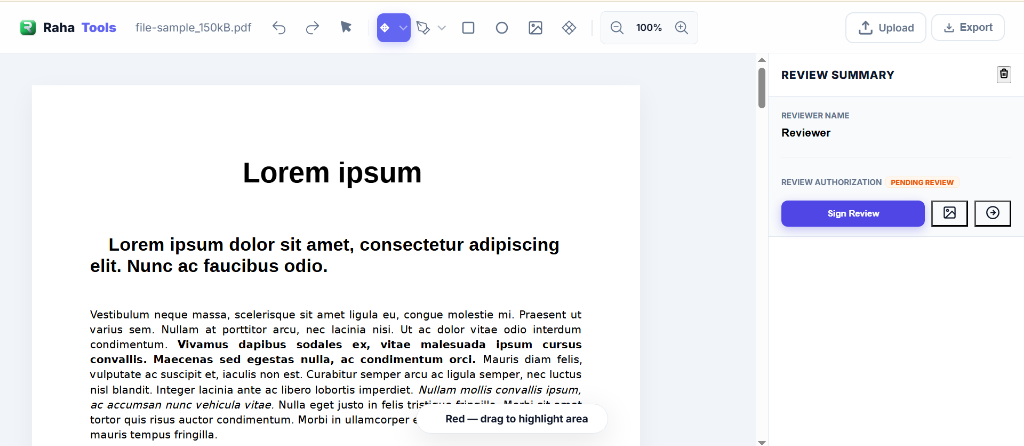
9. Multi-role sign-off & Review Authorization
This is the feature that separates it from a plain annotation tool: a document can require more than one person's approval before it counts as authorized. Set up role-based sign-offs — for example Prepared, Reviewed, and Approved — each with its own signature, reviewer name, and date. Turn on "require multiple sign-offs" and the document's overall Review Authorization status (Needs Revisions, Approved, and similar) only updates once every required role has signed. That's a real approval chain — the same shape as a paper document that has to physically travel from desk to desk for three signatures — compressed into one file that never leaves your browser.
10. Reviewer name (remembered)
Enter your name once and it's remembered for next time — a per-person preference, not something you re-type on every new document you open. Every finding you leave and every sign-off you complete is attributed to that name automatically.
11. Export — annotated PDF and a CSV findings report
When you're done, export the fully annotated document as a PDF (regardless of whether the original was PDF, Word, or Excel — everything normalizes to PDF on the way out, with every highlight, comment, stamp, and signature preserved exactly where you placed it). If scoring is enabled, you can also export a CSV report listing every finding, its category, and the points deducted — a clean summary you can share with someone who needs the numbers without needing to open the full marked-up document, or drop straight into a spreadsheet for tracking across multiple reviews.
Have a document to review right now?
Upload it and try every feature above for free.
Open the Document Review ToolHow to Review a Document Online: Step-by-Step
Upload your document
Go to rahatools.com/document-review and drag your PDF, DOCX, or XLSX file onto the upload area, or click to browse. It opens immediately — no waiting, no processing on a remote server.
Set your reviewer name and category preset
Enter your name once (it's remembered for next time), and choose General Review or Academic Grading from the Review Type dropdown — or customize the five categories yourself if neither preset matches what you're reviewing.
Highlight and annotate as you read
Select text or drag over an area, pick a category color, tag the note (General, Critical, Legal, or Typo), and write your comment using the rich-text editor — bold the important part, add a heading, or list out multiple points.
Set a priority per finding
Mark each note Low, Medium, or High so the person reading your review knows what to fix first.
Turn on scoring, if you need it
For grading, audits, or anywhere you want a consistent numeric result, flip on the scoring toggle. Each category's point value deducts automatically as you add findings, and the review summary sidebar tracks the running tally.
Add stamps or a signature
Drop a business stamp (APPROVED, DRAFT, CONFIDENTIAL, and others) anywhere on the page, or draw your signature to formally mark your part of the review as complete.
Authorize the review
If the document needs more than one approval, set up the required sign-off roles (Prepared / Reviewed / Approved, or your own naming) and require each one before the document's authorization status updates. Otherwise, set the overall status yourself once you're satisfied.
Export
Download the finished document as a PDF with every highlight, comment, stamp, and signature baked in, and optionally export a CSV findings report alongside it.
Who Actually Uses This
What ties these together isn't the industry — it's the shape of the work. Any time a document needs to move from "someone wrote a draft" to "an organization stands behind this," it has to pass through some version of highlight-comment-decide. The categories and point values are just vocabulary; swap "Critical Error" for "Failing Grade" or "Regulatory Breach" and the same tool works for a classroom, a courtroom, or a boardroom.
Best Practices for Effective Document Review
The tool handles the mechanics — where these tips help is making the review itself actually useful to whoever reads it afterward.
Agree on categories before you start, not halfway through
If more than one person is reviewing the same document, decide together whether you're using the General preset, Academic preset, or a custom set before anyone opens the file. Nothing wastes review time like discovering three-quarters of the way through that one reviewer has been calling everything "Suggestion" while another has been using "Critical" for the same class of issue.
Use priority levels honestly
If everything is marked High priority, priority stops meaning anything. Reserve High for what actually blocks approval, and let Low genuinely mean "fix this whenever, no rush" — the whole point is to let the reader triage without reading every comment first.
Write the comment for the person fixing it, not for yourself
"Awkward phrasing" tells the writer there's a problem but not what to do about it. "Consider rephrasing to lead with the conclusion, then the supporting data" tells them exactly what to change. The rich-text formatting exists so you can actually explain a finding properly instead of compressing it into a fragment.
Turn scoring on only when you need a number
Scoring is excellent for grading and audits, where consistency and comparability matter more than nuance. For a one-off contract review or a single report, a numeric score usually adds noise without adding value — the categorized comments already do the real work.
Decide the sign-off chain before the document is "done"
If a document genuinely needs three approvals, set up all three roles at the start of the review rather than adding them retroactively — it avoids the awkward situation where someone marks a document "Approved" before the people who were supposed to sign off on it have actually seen it.
Export and back up before you close the tab
Because nothing is stored on a server, your annotations exist only in that browser session until you export. For anything you've put real time into, export a copy as soon as you're at a natural stopping point rather than waiting until the very end.
Common Document Review Mistakes to Avoid
Treating every comment as equally important
Without categories and priority, a document review turns into an undifferentiated wall of comments, and the person on the other end has no way to tell what actually needs to change before this can be approved versus what's just a passing thought. Categorize and prioritize as you go, not after the fact.
Reviewing in a tool that uploads sensitive files to a server
Contracts, HR documents, medical records, and financial filings all contain information that shouldn't sit on a third-party server, even briefly, even with a stated deletion policy. Check whether the tool actually processes files locally before using it for anything sensitive — see the privacy section below for exactly what to look for.
Skipping the formal sign-off and just "sending a thumbs up"
An informal "looks good to me" in a chat message isn't a record — six months later, nobody can point to who actually approved a document or when. A real digital signature, tied to a name and date and attached to the document itself, is the difference between an opinion and an audit trail.
Not agreeing on what "Approved" actually means
If one reviewer approves a document with three outstanding Critical findings because "we'll fix those later" and another expects zero outstanding critical issues before approval, the sign-off means different things to different people. Settle what counts as approval-ready before the review starts, not during the sign-off conversation.
Losing work because you forgot to export
The same local-only architecture that keeps your document private also means there's no auto-save to a cloud account to fall back on. Get in the habit of exporting at natural checkpoints, not just once at the very end of a long session.
How This Compares to the Usual Ways of Reviewing a Document
None of the traditional methods are wrong, exactly — email, track changes, and Acrobat comments have gotten a lot of documents reviewed over the years. They just weren't built for the specific job of a structured, multi-person, formally-authorized review, so people bolt extra process onto them: a separate approval email, a shared spreadsheet tracking who's signed off, a naming convention for file versions. The table below is really comparing how much of that extra process each option still requires you to build yourself.
| Email + Track Changes | Adobe Acrobat Comments | Raha Document Review | |
|---|---|---|---|
| Categorized, color-coded findings | No | No | Yes |
| Optional scoring / rubric | No | No | Yes |
| Multi-role sign-off workflow | Manual, via email | No | Yes, built in |
| Works on PDF, Word, and Excel | Yes (separately) | PDF only | Yes, one tool |
| File uploaded to a server | Depends on email provider | Depends on plan | Never |
| Account required | Usually | Usually | No |
| Cost | Free (but slow) | Paid for editing | Free |
Is It Safe to Review Sensitive Documents This Way?
Yes — this is one of the areas where browser-based review genuinely beats the alternatives rather than just matching them. The document is rendered and annotated entirely on your own device. There's no upload step, no server-side processing, and no copy of your file sitting anywhere once you close the tab. For contracts, HR files, medical records, or anything else you wouldn't want sitting in a random inbox or cloud drive, that architecture matters more than any single feature.
This is genuinely different from most "free" document review platforms, which upload your file to process it and then rely on a retention policy to eventually delete it. Even a short retention window means a copy of your document existed, briefly, on infrastructure you don't control — logged, potentially cached, and exposed to whatever that provider's own security posture happens to be. Here, there's nothing to retain in the first place, because nothing was ever transmitted.
A simple way to check any tool's actual privacy claim, not just its marketing copy: open your browser's developer tools, go to the Network tab, and watch what happens when you upload and annotate a file. If you see outbound requests carrying your file's data, it's not local, whatever the homepage says. If the Network tab stays empty during the actual editing, that's the real proof.
What the Free Plan Actually Includes
Every feature in this guide — categories, quick tags, rich-text comments, scoring, stamps, signatures, multi-role sign-off, and export — is available without an account. The free tier is capped at 3 tasks per hour and 50 MB per file, which comfortably covers a normal review session for most single documents. If you're reviewing in higher volume — a legal team processing dozens of contracts a week, or a school marking a full class set of assignments — an optional Pro plan removes those limits. Nothing about the free tier is a stripped-down trial version; it's the same tool with a usage cap, not a features cap.
Frequently Asked Questions
What is an online document review tool?
An online document review tool lets you open a PDF, Word, or Excel file in your browser and mark it up directly — highlighting problem areas, leaving categorized comments, assigning severity, and formally signing off on the result — without printing, emailing attachments back and forth, or installing desktop software.
Is Raha Tools Document Review free?
Yes. The free plan covers every review feature — highlighting, comments, categories, scoring, stamps, signatures, and export — with a limit of 3 tasks per hour and 50 MB per file. No account is required. An optional Pro plan removes those limits.
What file types can I review?
PDF, DOCX (Microsoft Word), and XLSX (Excel). All three open in the same annotation environment, and the reviewed result exports as a PDF regardless of the original format.
Is my document uploaded to a server?
No. The entire review happens locally in your browser — opening the file, annotating it, scoring it, signing it, and exporting it. Nothing is transmitted anywhere.
Can multiple people sign off on the same document?
Yes. The tool supports role-based sign-offs — for example Prepared, Reviewed, and Approved — each with its own name, date, and signature, and an option to require every one of them before the document counts as authorized.
What is the scoring feature for?
Scoring is an optional rubric mode: each category carries a point deduction, and the tool tallies resolved versus outstanding findings and total points deducted — useful for grading, audits, or any review that needs a consistent, comparable score rather than a subjective pile of comments.
Can I use this for grading student assignments?
Yes. There's a built-in Academic Grading category preset designed for marking essays, theses, and assignments, separate from the default General Review preset — and you can turn on scoring so every student is marked against the same rubric.
Can I create my own review categories?
Yes. Beyond the General and Academic presets, all five category slots can be renamed with your own point values to match your team's or organization's review vocabulary.
What are the business stamps for?
Preset stamps like APPROVED, CONFIDENTIAL, DRAFT, VOID, RECEIVED, FINAL, REVIEWED, and REJECTED can be dropped anywhere on the page as a visual marker, the same way a physical rubber stamp works on a paper document.
Does the tool support digital signatures?
Yes. You can draw or place a signature directly on the document as part of the authorization step, tied to a reviewer name and date.
Can I export a findings report, not just the annotated file?
Yes. Alongside the annotated PDF, you can export a CSV report listing every finding, its category, and (if scoring is enabled) the points deducted — a clean summary you can share without sending the whole marked-up document.
Does this work on mobile?
Yes, it runs in any modern mobile browser. A laptop or desktop screen is more comfortable for heavy multi-page review sessions, but quick reviews and sign-offs work fine on a phone or tablet.
How is this different from just commenting in Adobe Acrobat?
Acrobat's commenting is free-form — sticky notes and highlights with no structure. This tool adds categorization with color and point value, a formal multi-role sign-off workflow, optional scoring, and works on Word and Excel files too, not just PDFs, all without uploading the file anywhere.
Do I need to install anything?
No. It's a web page — open it in Chrome, Safari, Firefox, or Edge and start reviewing. Nothing to download or update later.
Can I review a document with a team, or only alone?
Multiple people can each open the same source file and add their own sign-off (Prepared/Reviewed/Approved), making it suited to a small team's approval chain, though each reviewer works in their own browser session rather than a live shared canvas.
What happens if I close the tab before exporting?
Since nothing is stored on a server, your annotations only exist in that browser session. Export before closing the tab if you want to keep your work — there's no cloud auto-save to fall back on, which is the direct tradeoff for the file never leaving your device in the first place.
Can I password-protect the exported reviewed document?
The Document Review tool itself focuses on annotation and sign-off. If you need the final exported PDF password-protected as well, run it through Protect PDF afterward — also free and fully local.
Is there a limit to how many comments or annotations I can add?
No fixed limit on the number of highlights, comments, stamps, or signatures within a single review session — the free-tier limit is 3 tasks (documents) per hour and 50 MB per file, not a cap on annotation count.
Can I change the category preset partway through a review?
Yes, though it's cleaner to decide upfront — switching presets after you've already tagged findings with one set of categories means going back to make sure everything still makes sense under the new labels.
Bringing It All Together
The gap between "someone left some comments on a document" and "this document went through a real, documented review" comes down to a handful of things: feedback that's categorized instead of undifferentiated, severity that's visible at a glance, a record of who actually looked at it and when, and a final decision that's attached to a real signature rather than a verbal thumbs-up. None of that requires expensive software or a process overhaul — it just requires a tool built around that specific loop instead of a generic annotation layer bolted onto a PDF viewer.
Whether you're marking up a single contract, grading a stack of assignments with a consistent rubric, or running a document through a three-person approval chain, the workflow in this guide covers it — upload, categorize, comment, score if you need to, sign, export — entirely in your browser, with nothing ever leaving your device.
Review Your Next Document Properly
Categorized findings, optional scoring, real sign-off — free, private, no account.
Open the Document Review Tool