Is There Really an Easy-to-Use
Online PDF Editor?
Almost every PDF tool on the internet calls itself "easy to use." So we stopped taking that on faith, wrote down exactly what "easy" should mean, and tested six online PDF editors against it with a real document. Here's what actually held up.
Type "PDF editor" into Google and nearly every result promises the same thing: easy, simple, no skills needed. It's on Sejda's homepage, it's on Canva's, it's on Smallpdf's, it's on ours. When every competitor in a category uses the identical word to describe itself, the word has basically stopped meaning anything — which is exactly the problem if you just want to fix one typo in a contract before a 3 p.m. deadline and don't want to learn new software to do it. Below is how Raha Tools' own free online PDF editor held up against that bar, alongside the five others we tested.
So instead of asking "is this easy?" and taking the marketing page's word for it, we asked a more useful question: what would actually have to be true for a PDF editor to deserve that word? We wrote down five concrete, checkable criteria, then opened six online PDF editors — Raha Tools, Sejda, Smallpdf, Canva, Soda PDF, and PDFgear — with the same real, slightly messy PDF (mixed fonts, a scanned page, an image, a signature line) and timed, clicked, and tapped our way through each one. Below is exactly what we found, tool by tool, plus the honest technical reason PDFs are harder to edit than a Word document in the first place.
Quick answer
Raha Tools came out on top for genuine ease of use: you can click into real text and start typing within seconds, there's no account wall, no design canvas to learn, and the mobile version works the same way as the desktop one. Sejda is a strong second for the same reason — real inline text editing with none of the "convert to Word and pray" workarounds other tools fall back on. See the full comparison and methodology below.
What Does "Easy to Use" Actually Mean for a PDF Editor?
Before testing anything, we defined "easy" as five specific, checkable things — not a feeling. A PDF editor only earns the label if it can answer yes to most of these:
- Can you make your first real edit in under a minute? Not "upload and wait for a processing queue" — actually click into content and change it.
- Do you need to create an account before you can tell if it worked? A tool that makes you sign up before you've even seen whether the edit looks right isn't easy, it's a funnel.
- Is the interface built for editing a document, or for designing one? A blank-canvas, drag-layers, pick-a-template interface is a different skill set than clicking a sentence and typing over it.
- Does it work the same way on a phone as on a laptop? A huge share of "quick PDF fix" moments happen on a phone between meetings — an editor that only really works on desktop fails half its use cases.
- Can you finish the task for free, or does the free version stop just short of the export button? An editor that lets you do everything except save the result isn't easy — it's a trial with extra steps.
Every review below is scored against these five things specifically, not against vibes or homepage copy. That's also why this piece is a different comparison than our best free PDF editor roundup, which ranks tools on privacy, watermarks, and upload behavior — a related but separate question from whether a tool is actually easy to pick up cold.
Why Are PDFs So Hard to Edit in the First Place?
It's worth answering this before comparing tools, because it explains why "easy" is genuinely difficult to build — not just a UI polish problem. A Word document stores your content as flowing text: paragraphs, styles, and reflow rules that a program can read and rearrange. A PDF was designed to do the opposite. Per the ISO 32000 standard that defines the format, a PDF is built to look identical everywhere, on any device, regardless of what created it — so instead of "text," a PDF mostly stores a set of precisely positioned glyphs and drawing instructions. To the file format, the word "Invoice" isn't a word at all; it's a handful of character shapes placed at exact X/Y coordinates, using a specific embedded font.
That's great for making sure your invoice looks the same on every screen. It's terrible for editing, because a tool that wants to let you change "Invoice" to "Receipt" first has to figure out which glyphs belong together as one text run, what font and size they're using, and where the surrounding layout expects that text to sit — then reconstruct all of that before you're allowed to type. Skip that step, and you get what most "PDF editors" have historically done instead: paint a white box over the old text and drop a new text box on top, which is why so many PDF edits end up looking slightly misaligned, using the wrong font, or shifting when the document is reopened.
This is also why genuinely easy in-browser text editing — click a sentence, type over it, done — is a real engineering result, not a coat of paint. A tool either did the work to properly detect and rebuild text runs, or it's quietly patching over the problem with an overlay. You can usually tell which one you're using by zooming in on an edit afterward: if the new text sits a pixel or two off the original baseline, or uses a font that's almost-but-not-quite right, that's the box-on-top trick.
Scanned PDFs raise the difficulty another level, because there's no text to detect in the first place — just a photograph of a page. Editing one of those requires OCR (optical character recognition) to first guess what the words are before any editor can make them clickable, which is why a scanned contract or an old form often behaves noticeably worse in a "simple" PDF editor than a document that was exported directly from Word. If your document falls into that category, check that the tool you're testing explicitly supports OCR before judging its ease of use on a text-based file alone — the two are genuinely different problems.
How Do the Most Popular "Easy" PDF Editors Actually Compare?
Here's the side-by-side, scored against the five criteria above rather than each tool's own marketing claims.
| Tool | Real inline text editing | Account needed to finish | Interface type | Mobile as easy as desktop |
|---|---|---|---|---|
| Raha Tools | Yes — true text reconstruction | No | Document editor | Yes |
| Sejda | Yes | No (optional) | Document editor | Mostly — smaller toolbar on phone |
| Smallpdf | Basic text/shape overlay | Yes, for most actions | Document editor | Mostly |
| Canva | Via "elements," not inline | Yes | Design canvas | Cramped on small screens |
| Soda PDF | Yes | Only for some tools | Ribbon-style (Office-like) | Desktop-oriented |
| PDFgear | Basic text/shape overlay | No | Document editor | Mostly |
How Easy Is Raha Tools, Specifically?
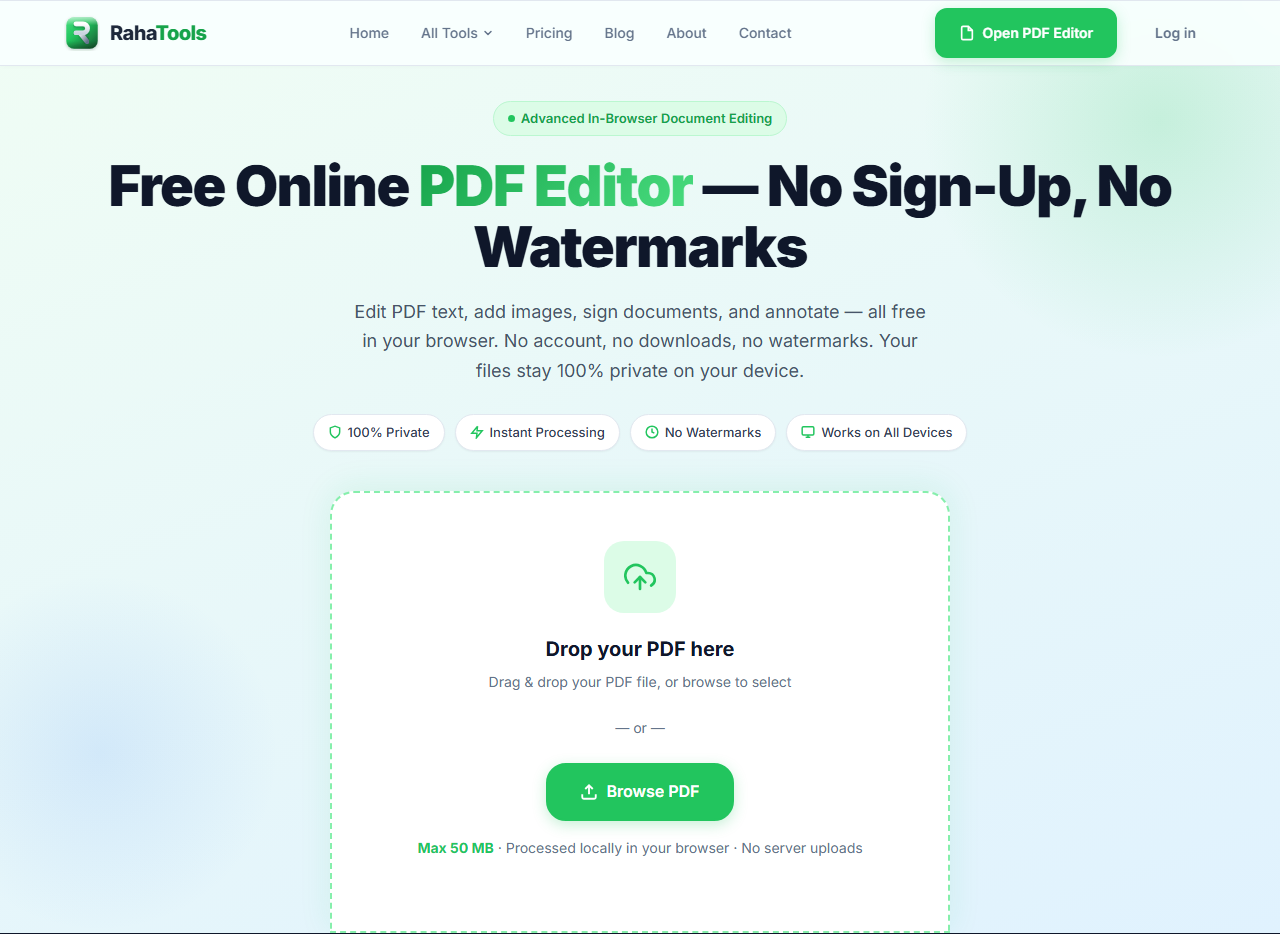
Raha Tools opens straight into the document — drag a PDF onto the page and the editor immediately maps every text block on it, making each one directly clickable within a couple of seconds. There's no "processing your file" spinner tied to a queue, no account prompt before you can see the result, and no separate design canvas to orient yourself in first. You click a sentence, the cursor lands inside the actual text, and you type — the same muscle memory as editing a Google Doc.
What makes this genuinely easy rather than just simply presented as easy is what's happening underneath: the editor performs real text-run reconstruction, matching the original font, size, and color before handing you the cursor, instead of pasting a new text box over the old content. That's why an edit still looks native to the document after export, rather than slightly off. The full Raha Tools PDF Editor workflow is three steps — load, modify, export — and every one of the core tools (edit text, merge, split, compress, sign, watermark, redact, add page numbers, OCR) uses that same shape, so once you've done one task, the rest feel familiar rather than like learning six different apps.
Pros
- Real inline text editing with font/size/color matched automatically
- No account needed to complete and export an edit
- Same editor and workflow on mobile browsers as on desktop
- One consistent 3-step flow across every tool in the suite
- Runs entirely in your browser, so there's no upload wait either
Cons
- Free plan capped at 3 tasks/hour and 50 MB/file
- No dedicated native iOS/Android app — browser-based only
- Smaller brand recognition than legacy players on this list
How Easy Is Sejda?
Sejda's web editor deserves its reputation here — it's one of the few tools that also does real in-browser text editing rather than the box-and-overlay trick, and it backs that up with genuinely helpful built-in guidance: hovering or clicking a tool surfaces a short explanation of what it does, which is a thoughtful touch for a first-time user who isn't sure where to start.
Where it loses a little ground on pure ease-of-use is toolbar density — Sejda packs a wide feature set (redaction, Bates numbering, form building) into the same interface as basic text editing, so the screen has more going on than a tool built around one simple task. On mobile, the core editing still works, but the toolbar visibly shrinks and some icon labels disappear, so you're doing a bit more guessing by tap than you would on desktop.
Pros
- Genuine inline text editing, not an overlay workaround
- Built-in tooltips/instructions for each tool
- No account required for basic use
- Deep feature set if you outgrow basic editing
Cons
- Busier interface than a single-purpose editor
- Mobile toolbar is more cramped than desktop
- Free tier limited to roughly 3 tasks/hour
How Easy Is Smallpdf?
Smallpdf's interface is genuinely one of the cleanest-looking in this test — soft colors, generous spacing, clear icons. For adding new text, highlights, shapes, or signatures on top of a page, it's about as approachable as this category gets, and the drag-and-drop upload is friction-free.
The catch is what happens when you want to change text that's already on the page rather than add something new: Smallpdf's editor leans more on placing new elements over the original content than truly rewriting the existing text run, so fixing an existing sentence is a slightly different (and fiddlier) motion than the "click and type" experience Raha Tools and Sejda offer. It's also one of the more account-hungry tools here — most actions past a first look require signing in, which adds a step before you can confirm the edit actually worked.
Pros
- Clean, uncluttered visual design
- Very easy for adding new text, shapes, signatures, highlights
- Consistent experience across Smallpdf's own apps
Cons
- Editing existing text is closer to an overlay than true inline editing
- Account required for most actions
- Only 2 free tasks per 24 hours
How Easy Is Canva for Editing a PDF?
Canva markets its PDF editor as skill-free, and for its actual use case — restyling a document, swapping colors, dropping in graphics, turning a PDF into something more visual — that claim holds up well, because Canva is a genuinely excellent, beginner-friendly design tool. The issue is that a design tool and a document editor are solving different problems, and Canva is unmistakably the former: your PDF gets broken into "elements" on a design canvas, with layers, alignment guides, and a full template library surrounding the one sentence you actually wanted to fix.
For "I need to change this one line of text before I send this," that's a lot of surface area to wade through. You'll find the text element, click it, and edit it — that part works — but you're doing it inside a full creative-suite interface built for building a poster, not for a fast document correction. On a phone, that same canvas gets noticeably more cramped, since design tools generally assume a larger screen and a mouse-precision pointer.
Pros
- Excellent for restyling or redesigning a document, not just editing it
- Huge template and graphics library
- Genuinely no design skill required for its intended use case
Cons
- Full design-canvas interface for a simple text fix — more steps than needed
- Account required
- Mobile canvas feels cramped for precise edits
How Easy Is Soda PDF?
Soda PDF also does real inline text editing, and its ribbon-style layout — tabs and grouped icons similar to Microsoft Office — will feel immediately familiar if you've spent years in Word or Excel. That familiarity is a genuine ease-of-use win for anyone coming from a desktop-office background.
It's also, somewhat paradoxically, the thing that works against it here: a ribbon interface brings a lot of desktop-software visual density onto a single browser tab, which is more to scan than a minimal, single-purpose editor. It leans more desktop-oriented overall — the browser version clearly assumes a mouse and a normal-sized monitor, and feels noticeably less adapted for a quick edit from a phone than Raha Tools or Sejda.
Pros
- Real inline text editing
- Familiar Office-style ribbon for desktop-software users
- Broad toolset in one place
Cons
- Ribbon interface is busier than a minimal document editor
- Feels built for desktop first, mobile second
- Account required for some tools
How Easy Is PDFgear?
PDFgear's biggest ease-of-use win is the least glamorous one: no signup, at all, for its core free tools. You land on the page, upload a file, and start editing immediately — there's real value in that lack of friction, and it deserves credit for it.
Where it falls behind the leaders is polish and depth of the editing itself. Text changes are closer to the overlay approach than true reconstruction, so edits can look a touch mismatched from the original, and the interface — while perfectly usable — reads more like a straightforward utility than a refined document editor. For a quick, low-stakes fix where you don't want to create an account for anything, it does the job.
Pros
- No signup required for core free tools
- Straightforward, no-nonsense interface
- Completely free for basic edits
Cons
- Text edits use an overlay approach, not true reconstruction
- Less polished visual interface than the category leaders
- Fewer advanced tools than Sejda or Soda PDF
How Do You Actually Edit a PDF in Under 60 Seconds?
Here's the exact walkthrough we used to time each tool above, using Raha Tools as the reference flow — it's also a good general checklist for judging any editor you're trying for the first time.
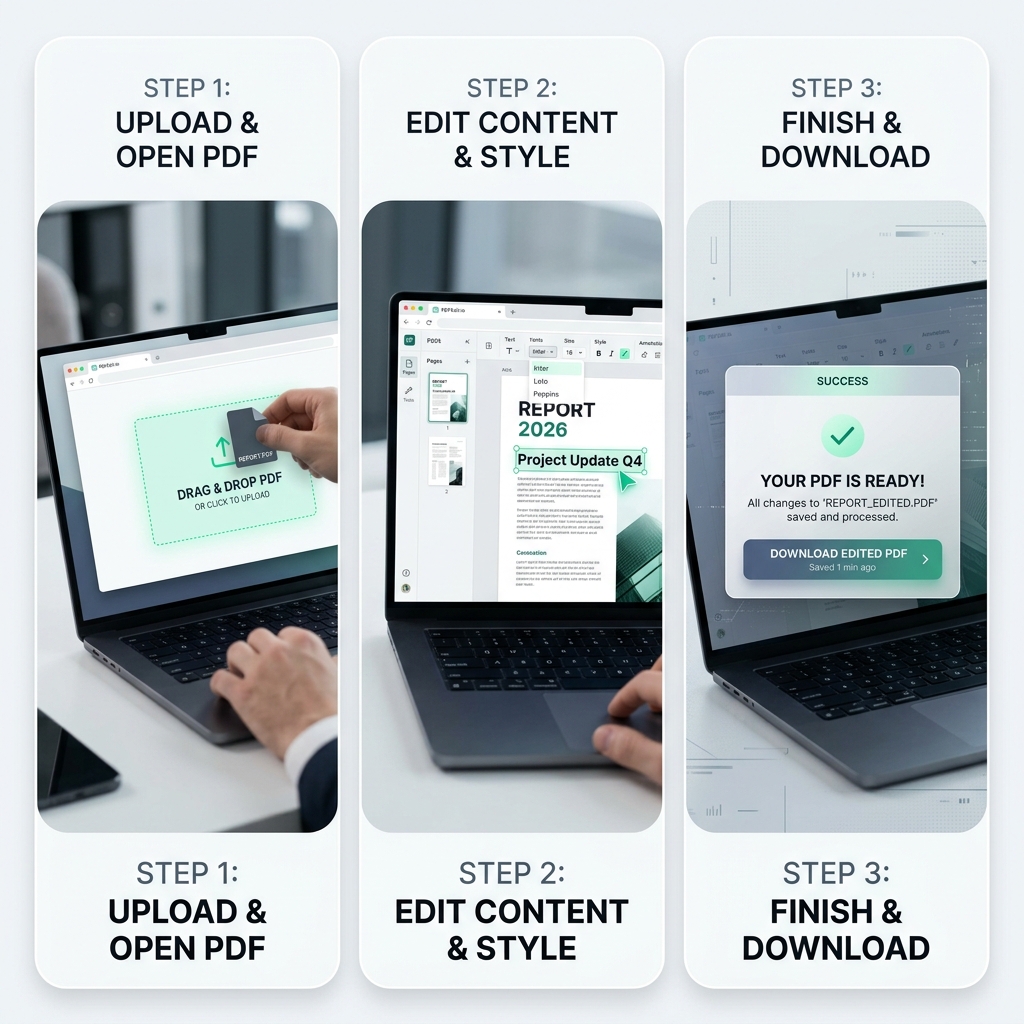
- Drop the file in. Drag your PDF onto the page, or use the file picker. There should be no account screen between you and this step.
- Watch what happens to the text. A genuinely easy editor maps your document's text within a second or two of loading — you'll see the cursor change when you hover over a sentence, meaning it's now directly clickable.
- Click the exact word or line you need to change. Your cursor should land inside the real text, at the exact character position you clicked — not select a whole box or paragraph you have to then delete and retype.
- Type the correction. Font, size, and color should carry over automatically. If the tool asks you to manually reset the font afterward, that's the overlay approach showing itself.
- Add anything else you need. A signature, a highlight, an image, a redaction box — in a well-built editor these are separate, clearly labeled tools rather than buried in menus.
- Export. This is the step that should never require anything you haven't already given the tool — no surprise "create an account to download" prompt after you've already done the work.
If you want the fuller version of this with screenshots for each core tool — merging, compressing, signing, and more — our complete guide to editing a PDF online walks through every one individually.
Can You Edit a PDF on Your Phone Just as Easily as on a Computer?
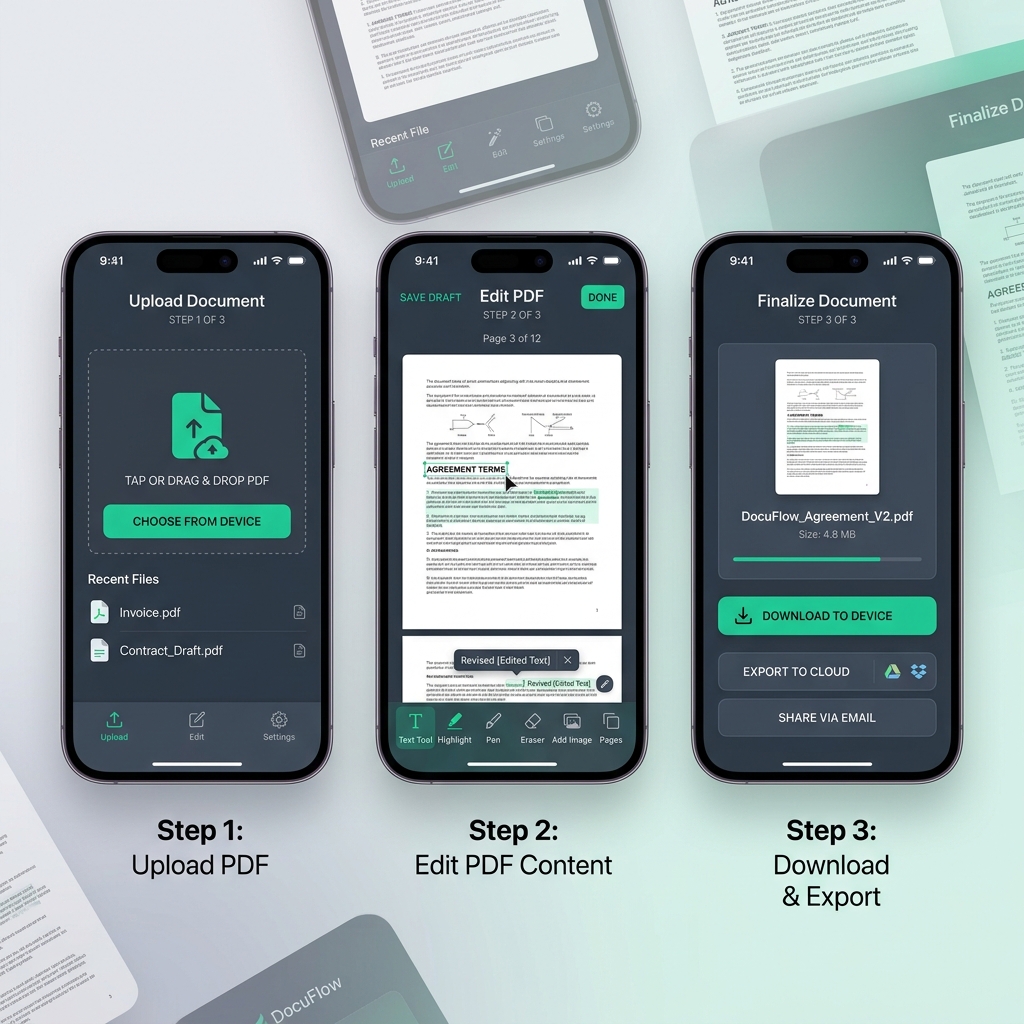
This is where the gap between tools widened the most in our testing. Several editors that felt genuinely easy on a laptop became noticeably harder on a phone — not because the core editing logic changed, but because the interface itself didn't adapt. A ribbon full of small icons, or a design canvas with tightly packed layers, both assume a mouse pointer with pixel-level precision. Shrink that same layout onto a 6-inch touchscreen and every tap gets a little riskier.
Raha Tools and Sejda held up best here because their core interaction — click text, type — translates naturally to touch: tap text, type, done. Where mobile got harder for other tools was almost always in the surrounding chrome: smaller icon targets, hidden labels, and toolbars that require a horizontal scroll to find the tool you need. If editing PDFs from your phone is a regular part of your day rather than a rare exception, it's worth testing a tool specifically on mobile before assuming its desktop reputation carries over — our mobile PDF editing guide goes deeper on what to check.
Does "Easy to Use" Also Mean Accessible?
This is a question most PDF editor reviews skip entirely, and it's worth asking directly: easy for most people isn't the same as usable for everyone. While testing each tool above, we also checked something beyond mouse clicks and finger taps — whether you could get around the editor using only a keyboard, and whether the important controls were labeled in a way a screen reader could actually announce, rather than relying purely on an unlabeled icon.
The honest result across this entire category, Raha Tools included: consumer PDF editors are still built primarily around a mouse or a touchscreen first, with keyboard and screen-reader support trailing behind. That's not unique to any one tool here — it's a category-wide gap. If accessibility is a hard requirement rather than a nice-to-have for you, don't take any editor's general "easy to use" claim at face value; test the specific things you need directly — tab through the toolbar, try zooming the page to 200%, and see whether your screen reader announces what each button does before trusting the tool with real work.
How Much Friction Is Actually Baked Into the "Free" Tier?
Ease of use isn't just about the interface — it's also about how many times the tool interrupts you before you're done, and pricing structure turned out to be one of the biggest hidden sources of friction in this test. A tool can have a beautifully simple editor and still feel hard to use if it stops you mid-task with a paywall, an unexpected watermark, or a task limit that resets on an inconvenient schedule.
The shape of that limit matters more than it sounds. A daily cap that resets at midnight is fairly forgiving if you only need to fix one document. An hourly cap can interrupt a longer editing session if you're working through several files back to back. And a few tools in this category — not the ones reviewed in detail above, but common enough to be worth naming as a pattern — let you complete the entire edit for free and then place the paywall at the export button, so you don't discover the real cost until after you've already invested the time. That's arguably the least "easy" pattern of all, because it wastes the one thing a genuinely simple tool is supposed to save you: your time.
When you're judging whether a free plan is honestly free or just free-shaped, check three things before you commit ten minutes to a tool: what exactly the daily or hourly limit is, whether that limit is stated on the homepage or only discovered after you hit it, and whether the free export carries a watermark. Raha Tools publishes its limit plainly — 3 tasks an hour, 50 MB per file, no watermark ever — specifically so that trade-off is visible before you start, not after.
Do You Need Any Design or Technical Skills to Edit a PDF Online?
No — for a purpose-built PDF editor, editing text is closer to using a word processor than "designing" anything: you click, you type, you export. Where the "no skills needed" claim gets murkier is with tools like Canva, which are absolutely true to that promise for their actual purpose (building something visual from scratch) but ask you to learn a small amount of design-tool vocabulary — elements, layers, canvas, alignment — just to make one text correction. That's not a skill barrier exactly, but it is more surface area than a document-first editor requires for the same task.
The practical test: if you can edit a Google Doc or a Word file without a tutorial, you should be able to edit a PDF in a genuinely easy tool without one either. If a "beginner-friendly" editor still needs its own onboarding tour before you can find the text tool, that's worth noticing.
What Should You Avoid When Picking an "Easy" PDF Editor?
A few patterns showed up repeatedly across the category that are worth watching for, since they tend to hide behind exactly the same "easy" and "simple" marketing language used by the tools that actually deliver on it.
- An account wall before you can preview the result. If you can't tell whether your edit even worked without signing up first, the tool is optimizing for its own signup metrics, not your five minutes.
- A full design canvas for a one-line text fix. Great for building something new, overkill for correcting something that already exists.
- Free-to-edit, paid-to-export. Some tools let you do the entire edit for free, then gate the actual downloaded file — which means you don't find out it's not really free until after you've already invested the time.
- Mobile as an afterthought. If a tool's mobile site is just its desktop layout scaled down rather than a touch-adapted interface, expect a harder time on your phone regardless of how easy the desktop version is.
- No visibility into where your file goes. This one's about more than convenience — see our note below on why it's connected to ease of use, not separate from it.
A quick, related check
Whether a tool uploads your file to a server or edits it locally in your browser affects speed as much as privacy: local editing has no upload bar to wait through and no processing queue, which is part of why it also feels faster and easier. If that trade-off matters to you as much as the interface does, our full privacy-focused comparison ranks the same category of tools on exactly that.
Which "Easy to Use" PDF Editor Should You Actually Pick?
It genuinely depends on what "editing a PDF" means for you today:
- You just need to fix text and get on with your day: Raha Tools — real inline editing, no account, same experience on your phone.
- You want real text editing plus heavier legal/publishing tools: Sejda, especially if you'll use redaction or Bates numbering too.
- You mostly need to annotate, sign, or highlight rather than rewrite text: Smallpdf's clean interface is well suited to that narrower job.
- You actually want to redesign the document, not just correct it: Canva is the right category of tool — just don't expect a one-line fix to be its fastest path.
- You live in Word/Excel every day and want that same ribbon feel: Soda PDF will feel the most immediately familiar.
- You want zero signup, full stop, even for a one-off fix: PDFgear gets you there fastest, with some trade-off in polish.
If you're here because you have an actual PDF to fix right now, the fastest way to find out whether "easy" holds up is to just try it on your own file — open the Raha Tools editor, drop your document in, and see how long it takes before you're looking at a corrected page.
See for yourself how fast "easy" actually is
No account, no design canvas, no upload wait. Drop in your PDF and start editing.
Open the PDF EditorFrequently Asked Questions
What is the easiest online PDF editor to use?
In our testing, Raha Tools was the easiest for straightforward edits — real, selectable text within seconds of loading a file, no account, and no design canvas to learn. Sejda was a close second thanks to genuine in-browser text editing and helpful built-in guidance for first-time users.
Can I edit a PDF without any design or technical skills?
Yes, on a purpose-built document editor like Raha Tools or Sejda — you click text and type, the same as editing a normal document. Design tools like Canva also market themselves as skill-free, and they are for their intended purpose, but editing your PDF means working through design "elements" on a canvas rather than clicking directly into text.
Why do PDF editors feel harder to use than a Word document?
A PDF stores text as precisely positioned character shapes rather than flowing paragraphs. Editing it properly means a tool has to detect the font, size, and position of that text and reconstruct it before letting you type over it — many editors skip that step and layer a new text box on top instead, which is why some PDF edits come out looking slightly mismatched.
Is it easier to edit a PDF on a phone or on a computer?
It depends entirely on the tool, not the task. Raha Tools and Sejda run essentially the same editing experience in a mobile browser as on desktop. Several other tools we tested keep their desktop layout largely intact on mobile, which makes small icons and precise text selection noticeably harder to tap accurately.
Do free PDF editors let you finish an edit without creating an account?
Raha Tools, Sejda, and PDFgear all let you complete a basic edit and export the result with no signup. Smallpdf and Canva generally require an account for most actions beyond an initial look, which adds a step between opening the tool and actually finishing your document.
What should I avoid when picking an "easy to use" PDF editor?
Watch for tools that market themselves as easy but drop you into a full design canvas for a one-line text fix, require an account before you can even preview whether the edit worked, or let you complete the whole edit for free and then paywall the export. It's also worth checking whether your file is processed locally in the browser or uploaded to a server — see our guide on PDFs that won't let you edit text at all if you're running into that specific issue.
What's the difference between this comparison and your "best free PDF editor" post?
This piece is scored purely on usability — time to first edit, whether an account is required, whether the interface is built for editing vs. design, and mobile parity. Our best free PDF editor comparison scores the same category of tools on a different axis: privacy, file uploads, watermarks, and how far the free tier actually goes. A tool can score well on one and not the other, which is exactly why we kept them separate.
Are "easy to use" PDF editors also accessible for keyboard and screen-reader users?
Not consistently. Most consumer PDF editors, across this entire comparison, are still built primarily around mouse and touch interaction, with keyboard navigation and screen-reader labeling trailing behind. If that's a hard requirement rather than a preference, test the specific things you need — tabbing through the toolbar, zooming to 200%, screen-reader announcements — directly, rather than assuming a tool's general ease-of-use reputation covers it.
Our Verdict: Yes, an Easy-to-Use Online PDF Editor Exists — But "Easy" Isn't the Same Everywhere
The honest answer to the question in this post's title is yes — genuinely easy PDF editors exist, and the difference between them and the ones that only claim to be easy comes down to a handful of specific, testable things: whether text editing is real reconstruction or an overlay trick, whether an account sits between you and your result, whether the interface was built for editing or for design, and whether mobile got the same care as desktop. Raha Tools and Sejda both hold up well against every one of those checks; Smallpdf, Canva, Soda PDF, and PDFgear each do part of the job very well while trading off on another.
If the tool you're using today makes a one-line text fix feel like a multi-step project, that's not a personal failing — it's a sign the tool wasn't actually built around that task. The fastest way to know for sure is to run your own document through the six-step checklist above and see how far you get before something interrupts you.
Try the Editor Built Around One Job: Editing Your PDF
No account, no design canvas, no upload wait — just click your text and type.
Open the PDF Editor